
Introducing Presentation Mode: Slides That Talk Back
Key Takeaways
- Presentation Mode is live. It turns any slide deck into an interactive presentation led by a D-ID Agent.
- Viewers can interrupt. They ask questions at any point, get answers on the spot, and the Agent continues where it left off.
- No script required. Upload a PDF or PowerPoint file, or share a Google Slides link, and D-ID generates the speaker notes automatically.
- Every question is saved. Each session is stored with its full transcript, so you can see exactly what your audience asked.
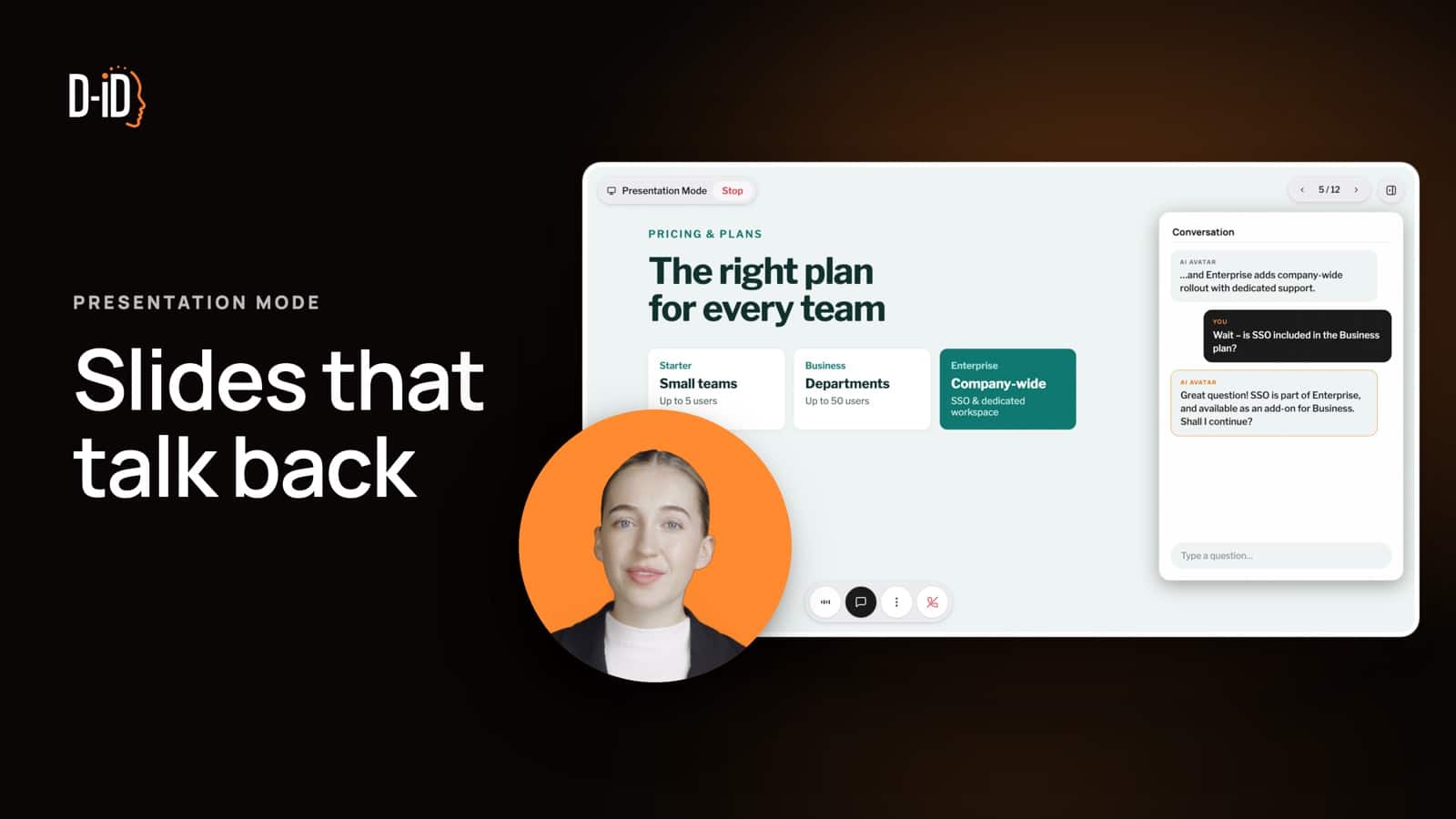
Presentation Mode is a new way to turn presentations into conversations. Upload a deck, and a D-ID Agent presents it for you. Your audience can interrupt at any point, ask a question and get an answer on the spot. Then the Agent picks up right where it left off.
Any deck can now become an interactive presentation with an AI presenter. In other words:
Slides that talk back.
Why Static Decks Fall Short
Presentations have quietly changed. More and more of them are never presented live. They’re sent as attachments, forwarded to colleagues, and opened days later by someone who wasn’t in the room.
That’s where the deck falls short. Without a presenter, slides lose their context. Bullet points that made sense with a voice behind them become unclear. And when a viewer has a question, there’s no one to ask. So they guess, skip ahead, or close the file.
The sender loses too. You don’t know which slides resonated, which ones confused people or what almost changed their mind. A static deck is a one-way channel, and one-way channels don’t tell you anything in return.
More Than an AI That Presents Slides
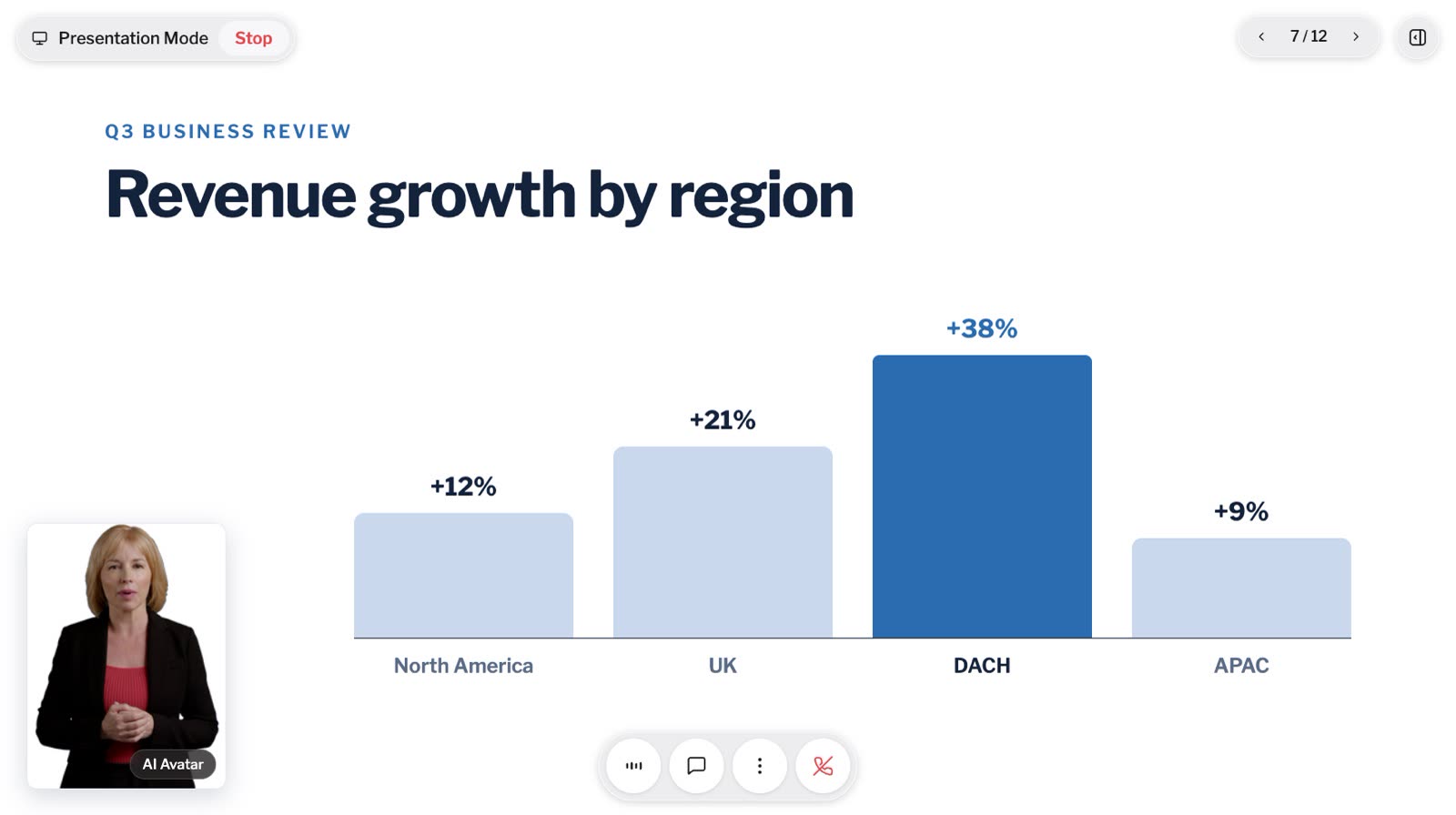
Plenty of tools can read slides aloud. Presentation Mode is built for what happens next: your audience’s questions.
Your audience leads
Viewers don’t have to sit through a one-way monologue. They can interrupt, ask about what matters to them, and explore at their own pace. Every viewer gets a presentation shaped by their own questions.
No script required
You already have the deck. That’s all you need. Upload it as a PDF or PowerPoint file, or share a public Google Slides link, and Presentation Mode generates the speaker notes automatically, so there’s nothing to write, record, or rehearse. You can review and adjust the notes before sharing.
Every question is on the record
The questions your audience asks show you what they care about. Presentation Mode saves every session with its full transcript, so you can see exactly what people asked and how the Agent answered.
What It Feels Like to Talk to an Interactive AI Presenter
Picture a prospect opening your sales presentation on a Tuesday afternoon. Here’s what happens:
- The Agent starts presenting. It walks through your opening slides, explaining your product based on the content you’ve provided.
- The viewer interrupts. On the integrations slide, they ask: “Does this work with the CRM we already use?”
- The Agent answers. It responds right away, using the information in your presentation, just as a well-briefed colleague would.
- The presentation continues. The Agent picks up where it left off and keeps going without losing the thread.
The viewer gets their answer in seconds instead of starting an email thread. And you now know that integrations are top of mind for this account.
How It Works
Going from static deck to an interactive presentation takes three steps:
- Create an Agent and add your deck Start by creating a new Agent in D-ID Studio. Then add your deck in the Agent’s Knowledge tab: upload a PDF or PowerPoint file, or paste a public Google Slides link. Decks can be up to 100 MB and contain up to 100 slides.
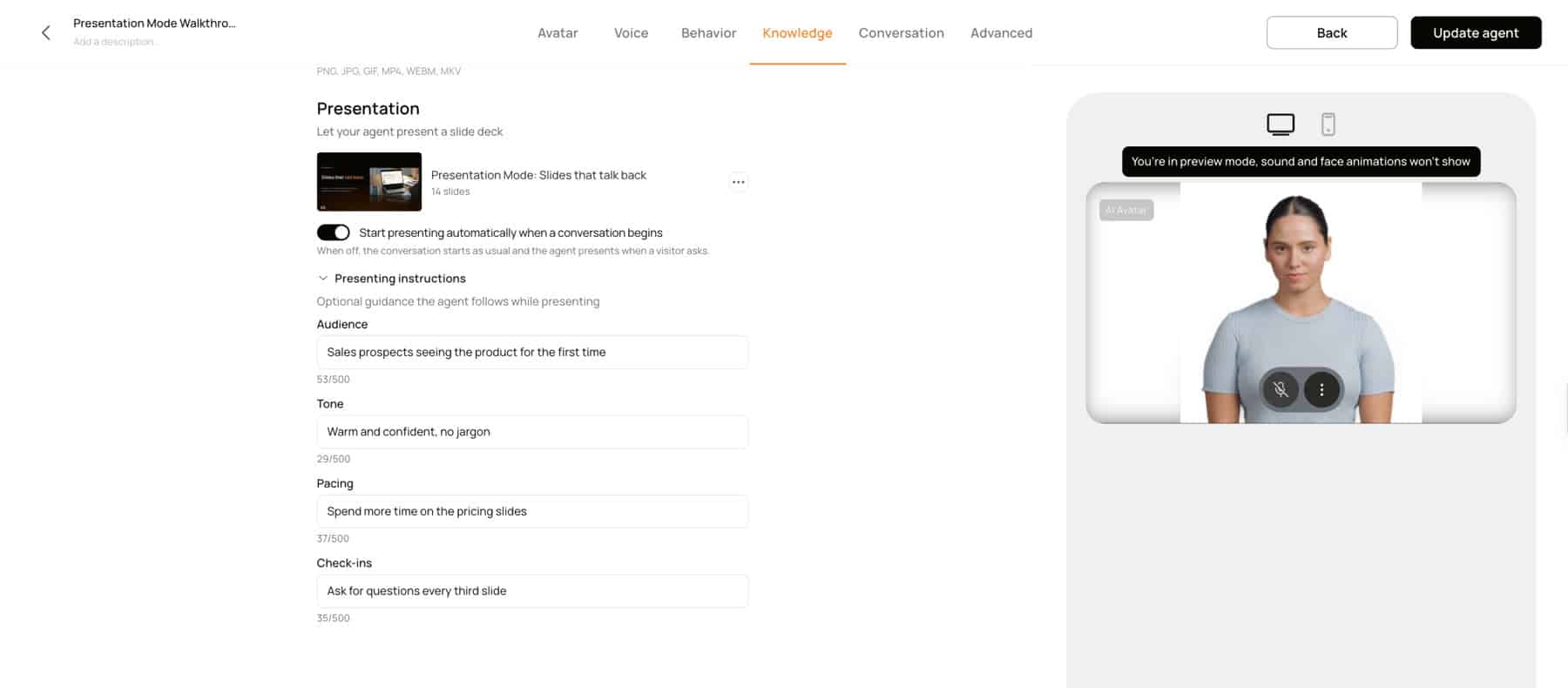
- Brief your Agent Presentation Mode generates speaker notes for every slide. Tell your Agent who the audience is, what the goal is, and how to pace the presentation. For example, you can ask it to pause for questions every third slide.
- Share the link Your Agent starts presenting as soon as the session begins, handles questions as they come, and saves every conversation to Insights.
Make It Your Presenter
Presentation Mode runs on standard D-ID Agents, so you have access to the same options. You can choose from the same avatars, voices, and languages as you can with other D-ID Agents.
You also decide how the Agent presents. Tell it who the audience is, what the presentation needs to achieve, and what pacing, tone, and check-in style to use. A sales presentation might move quickly and pause for questions after the pricing slide. A training session might check in every third slide.
Behind the Demo: A Presentation That Presents Itself
When we launched Presentation Mode, we faced a familiar problem. We could create a deck explaining the feature, but a static deck is exactly what Presentation Mode is meant to move beyond.
So we did the obvious thing. We built a Presentation Mode Agent that presents Presentation Mode. It explains the feature, walks through how it works and shows the use cases. And like any Presentation Mode Agent, it can be interrupted at any point.
Ask it whether it could work for your team. Ask it how the speaker notes are generated. Ask it something off-script and see how it responds. Every question you ask puts the product to work.
Where Teams Use Presentation Mode

Send a conversation, not a deck
Most sales decks get forwarded, skimmed, and forgotten. With Presentation Mode, prospects can explore your presentation on their own time and get answers when they need them. Before your next call, you can see exactly what they asked.
Brief the Agent for the deal: who the prospect is, what the presentation needs to achieve, and when to pause, for example right after the pricing slide. When the prospect asks about integrations, security or pricing, the Agent answers from your deck instead of leaving them to guess. The transcript in Insights then shows you which questions came up, so your follow-up can start with what the prospect actually wanted to know instead of a generic check-in.

Launches that answer back
Walk buyers through new features and let them explore the details that matter to their business, without waiting for a live demo time.
A launch deck usually has to work for several audiences at once. Existing customers want to know what changes for them, new buyers need the basics, and technical evaluators look for the details. With Presentation Mode, each viewer steers toward the part that matters to them, and the Agent answers from your launch content. You can also set the Agent up in the language your buyers speak, with the same language options as other D-ID Agents.
After launch, the transcripts show which features people asked about most. That’s useful input for your next release, your sales enablement material and your documentation.

Learning that takes questions
New hires can move at their own pace and ask the questions they might hesitate to ask in a room. Their questions can also show you where your training material needs work.
Upload the onboarding deck you already use and set the pacing in the brief, for example a check-in every third slide so new hires can stop and ask before moving on. Questions about a process or a tool get answered from your training content whenever someone works through the material, without waiting for the next live session.
For L&D teams, the transcripts are a record of where people got stuck. If the same question shows up across many sessions, that slide or module probably needs a rewrite.

All-hands, on demand
Share strategy updates and company news in a format that people ask questions, not just watch.
Not everyone can join the all-hands live, and a recording can’t take questions. Share the presentation as a link, and people can go through it when it suits them, interrupt when something is unclear, and get an answer based on the content you provided. The questions they ask show you which parts of the message landed and which parts need more explanation in the next update.
Turning Questions into Insights
A static deck can tell you, at best, that someone opened it. Presentation Mode can show you what they wanted to know.
Every session appears in your Agent’s Insights page in D-ID Studio, with a full transcript of every question your audience asked and every answer the Agent gave. You can export conversations as CSV or share Insights with teammates via a link. Review several sessions, and patterns start to emerge:
- Spot objections early. If prospects keep asking about security or pricing, your sales team can see what to address before the next call.
- Fix unclear content. If the same question keeps coming up, your deck may not be answering it clearly enough.
- Follow up with context. Instead of a generic “Any questions?” email, follow up on what the viewer actually asked.
- Learn what resonates. See which topics spark the most curiosity and use those insights to shape your next presentation.
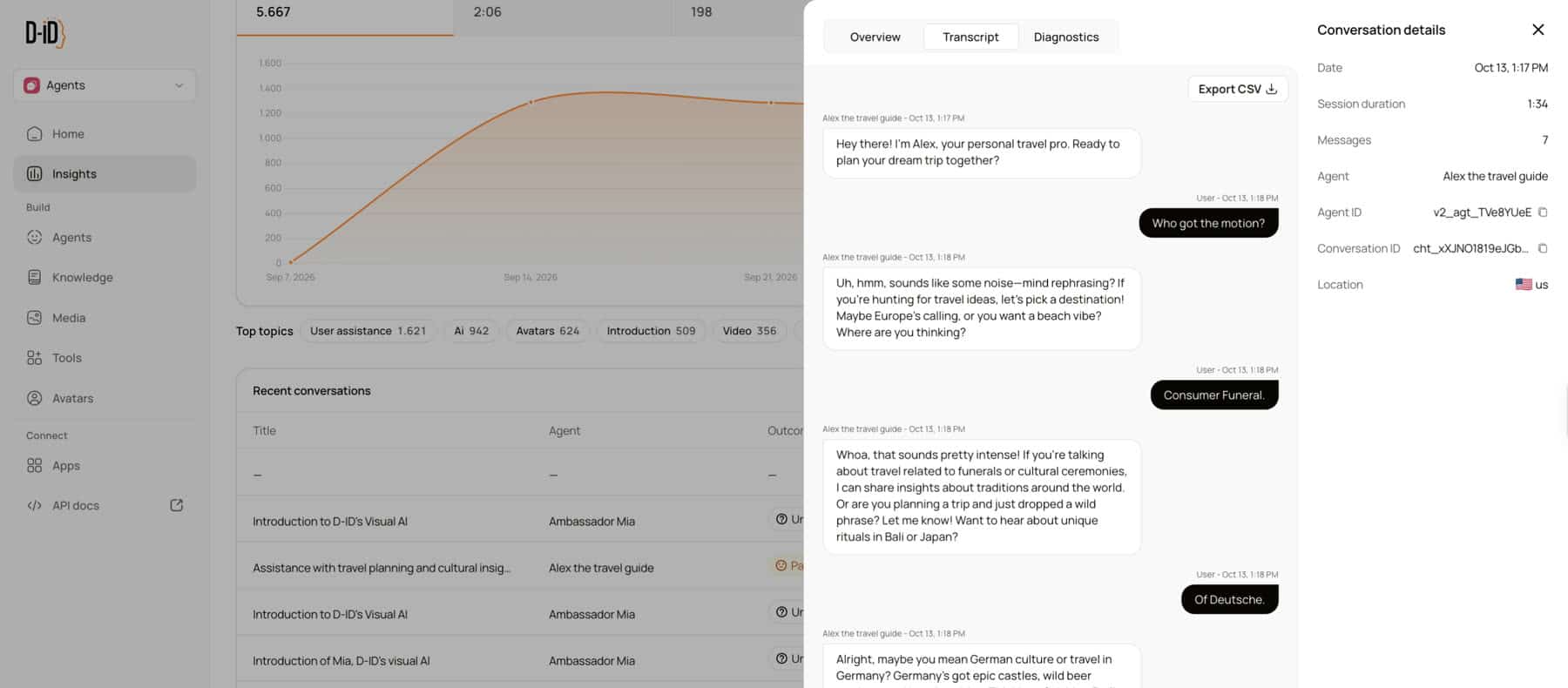
The result is a feedback loop: what you learn from one presentation can help improve the next.
Getting Started: 3 Tips for Your First Presentation
- Start with the deck you send most. Your standard sales presentation, product overview, or onboarding deck is a good place to start. It reaches the most people, so you’ll start collecting questions quickly.
- Review the notes and brief your Agent. D-ID generates the speaker notes for you, but a quick review lets you add the context only you know: a customer story, a key differentiator, or the phrasing your team always uses. Then set the audience, goal and pacing.
- Check Insights after the first week. Review the transcripts or export them as a CSV, then look for patterns. The questions people ask most can help you improve your deck, as well as your broader sales or training materials.
Try It: Slides That Talk Back
The best way to understand Presentation Mode is to try it for yourself. We built a Presentation Mode Agent that presents Presentation Mode itself. Go ahead, interrupt it. Ask how it works, how long it takes to set up, or whether it could work for your team.
When you’re ready, upload your own deck and turn your next presentation into a conversation.
FAQs
What is Presentation Mode?
A D-ID feature that turns a slide deck into an interactive presentation. A D-ID AI Agent presents your slides and answers viewers’ questions in real time.
Do I need to write a script?
No. Upload your deck, and D-ID generates the speaker notes automatically. You can edit them before sharing.
What happens when a viewer asks a question?
The Agent pauses, answers the question based on your presentation content, then picks up where it left off.
What file formats can I upload?
You can upload a PDF or PowerPoint file (.pptx), or share a Google Slides link. Decks can be up to 100 MB and 100 slides.
Where do I see what my audience asked?
You can see it in your Agent’s Insights page in D-ID Studio. Each session is saved with a full transcript, which you can export as a CSV or share via a link.
Which plans include Presentation Mode?
Presentation Mode isn’t limited to a specific plan.
Can I choose the avatar, voice and language?
Yes, Presentation Mode uses standard D-ID Agents, with the same avatar, voice and language options.
Was this post useful?
Thank you for your feedback!