
AI Video Enhancement
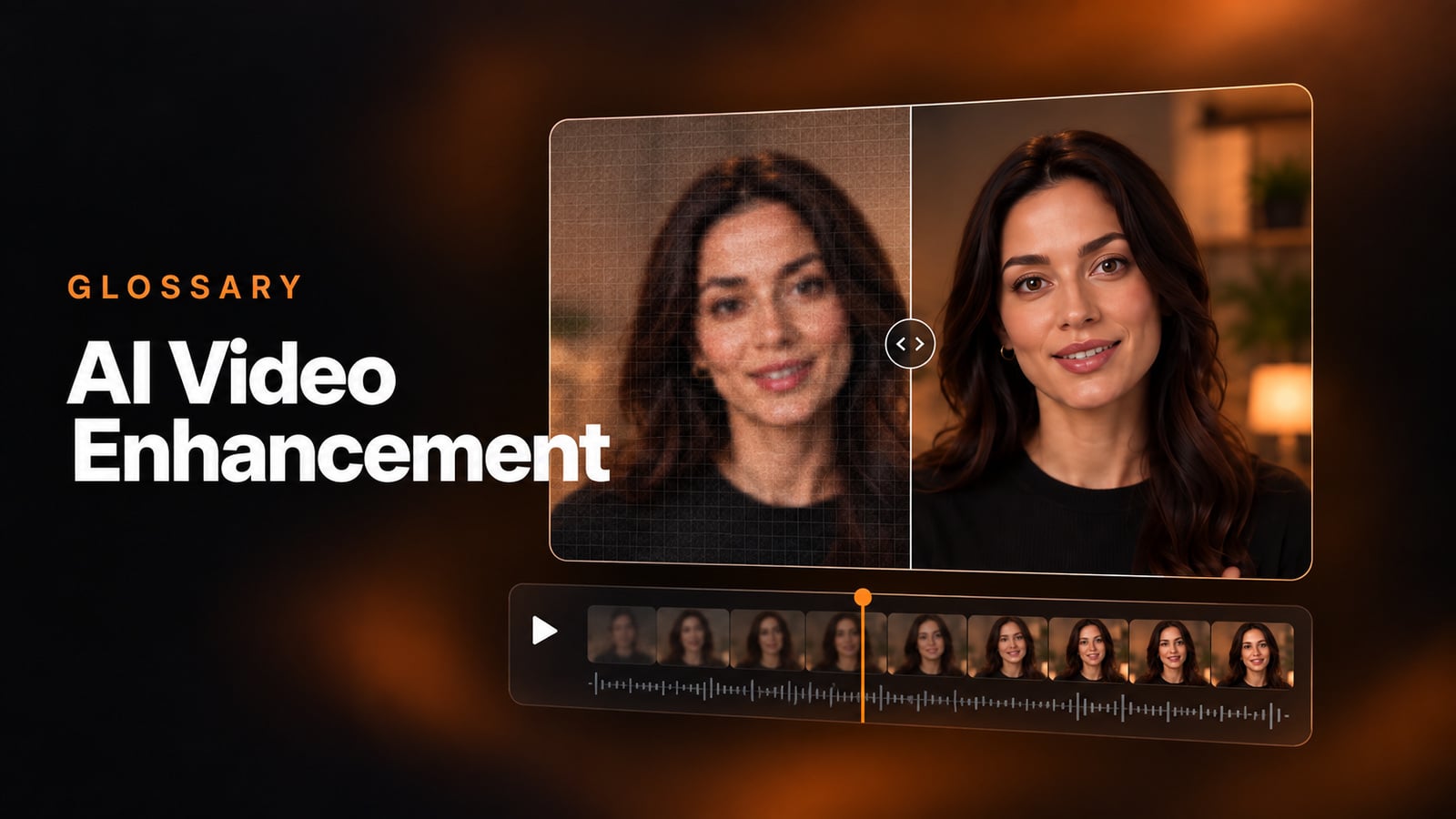
AI video enhancement is the use of trained machine learning models to improve the technical quality of footage that already exists: resolution, sharpness, noise, color, motion smoothness, and audio clarity. Rather than an editor correcting the material frame by frame, the model analyzes it and produces a cleaner version.
The distinction between correcting and producing matters. An enhancement model predicts detail the original capture never recorded, which is why it repairs some problems reliably and others only approximately.
These models learn from paired footage, a clean version and a degraded version of the same material, then apply that mapping to video they have never seen. How closely your footage resembles the training material is why results vary so much between sources. Enhancement always starts from recorded material, which is the line between it and synthetic video, where there was no camera in the first place.
Before paying for render time, decide which of three routes a video belongs to: repair the file, re-record it, or generate it clean at the source.
How does AI video enhancement work?
Most tools follow the same sequence, whatever they call their features.
- Decode. The file is unpacked into individual frames and an audio track.
- Analyze. The tool assesses what is wrong: source resolution, noise level, motion between frames, exposure drift, and how much background noise sits under the speech.
- Process. Models run over the frames. Good implementations read neighboring frames, because a per-frame fix that ignores its neighbors produces flicker.
- Reassemble and review. The frames and cleaned audio are re-encoded into a new file, and a person checks the result against the original. The failure modes are visual, and automated quality scores catch them unevenly.
Passes are usually chained: denoise, then upscale, then color, because upscaling amplifies whatever noise it is given.
Upscaling, restoration, denoising, interpolation: how they differ
Upscaling, restoration, denoising and frame interpolation get named interchangeably, and all four are often filed under restoration, which makes it hard to tell what a given tool actually does. They solve different problems and fail in different ways. Stabilization and color correction are in the table too, because they usually ship in the same package.
| The problem it addresses | What the model does | Where it struggles | Typical job | |
|---|---|---|---|---|
| Upscaling | Footage is too small for the screen it plays on | Predicts detail that was never captured, at higher pixel dimensions | Faces, text, and logos, where invented detail is visibly wrong | SD archive to HD |
| Restoration | Physical damage to the source, or loss from repeated copying | Chains passes: dropouts, scratches, and interlaced scan lines from tape first, then denoise and upscale | Badly damaged material, with little signal left to work from | Digitized tape and film |
| Denoising | Grain, sensor noise, or compression artifacts | Separates texture that belongs in the image from noise that does not | Skin, hair, and fabric, which can go waxy | Low-light footage |
| Frame interpolation | Motion looks choppy, or slow motion is needed | Generates new frames between two real ones from estimated motion | Fast motion, cuts, and objects passing in front of each other, where it warps or leaves a faint double image | 30fps to 60fps |
| Stabilization | Camera shake | Tracks the motion and repositions each frame to cancel it | Heavy shake, because stronger stabilization crops in further and steadiness trades directly against framing | Handheld phone footage |
| Color and exposure correction | Exposure, white balance and saturation drift across a clip or a library | Normalizes them toward a neutral baseline | Anything where the look carries meaning, since a neutral baseline is not a deliberate grade | Bringing a mixed library to one standard |
Enhancement suites commonly bundle most of these and chain them, so in practice they are applied together. Keeping them separate is still diagnostic: knowing which one your footage actually needs tells you whether the result will be good before you spend the render time.
Audio is handled separately, by speech models that remove background noise, hum and echo and can rebuild clarity in muffled dialogue. On a talking-head recording that often does more for perceived quality than anything done to the picture.
Where teams use enhancement
Enhancement shows up wherever recorded footage carries business weight and re-shooting is expensive or impossible. Three jobs recur: archive and library reuse, where old conference talks and video tutorials are cleaned up once and republished; webinar and internal recordings, where hum and echo are stripped so a long session holds up on demand; and digitized tape and film, restored for exhibition or teaching. Upscaling in particular has moved out of specialist suites into consumer hardware and browsers.
When enhancement is the wrong tool
Enhancement is often presented as a way to rescue any footage. It is not, and the failure modes are worth knowing before you commit a library to a render queue.
It invents detail rather than recovering it. An upscaler produces a confident, plausible version of information the sensor never captured. For footage used as evidence, in news reporting, or in medical and scientific contexts, that can disqualify the output. Keep the unprocessed original, and check whether your sector has rules about processed material before you publish.
It cannot fix decisions, and it is not free. Framing, missed focus, the direction of the lighting, and a script that does not land are capture and content problems that no enhancement pass reaches. High-resolution passes over long libraries also take hours of GPU time, so the ceiling on an archive project is usually compute and review capacity. And enhancement does nothing for accessibility: captions, transcripts and audio description remain separate work.
So the practical question is usually not which enhancement tool to buy, but which of three routes a video belongs to. Repair when the content still holds up, the production does not, and the material cannot be captured again. Re-record when the message has dated or the problem is framing and focus. Generate clean at the source when the content is text or slides to begin with, as it often is for an explainer video or a product walkthrough, because video produced by a model has no sensor noise, shake or lighting problem to correct later.
Repair or regenerate: where D-ID fits
D-ID does not sell a video enhancement tool, and this entry is not a route to one. The decision it bears on is the one a team faces with a course recording that has dated: run the file through an enhancement pass, or rebuild the content from the script.
Rebuilding changes the arithmetic. Video rendered from a script by the D-ID AI Video Generator has no capture stage of its own, so there is no sensor noise, camera shake or exposure drift to correct later, and the next update is a text edit.
simpleshow, part of D-ID since September 2025, meets the same choice from the animation side: instead of enhancing an explainer that has aged, you can switch its illustration style and keep the script intact.
If the problem is a degraded recording you cannot capture again, a dedicated enhancement suite is still the right instrument.
FAQs
What is the difference between video enhancement and video editing?
Editing changes what a video says: which scenes survive, what order they run in, what titles and music sit over them. Enhancement changes how it looks and sounds, working on footage that already exists, and it is largely automated. Editing still depends on human judgment about story and pacing.
Does AI video enhancement change the original file?
Enhancement tools generally write a new file, and keeping the untouched original is worth doing anyway. Processing compounds on itself, so a file you have already enhanced is a poor starting point for a second pass. Enhancement decisions are also subjective, and the models keep improving.
Are there free AI video enhancement tools?
Yes, for specific jobs. Some GPU vendors ship playback-time upscaling free in the browser, and free audio cleanup filters are widely available. Full suites are generally paid subscriptions, and free tiers commonly cap resolution, length or output, or add a watermark, so check those limits against the footage you actually have.
Does AI video enhancement work on animated or screen-recorded video?
Less predictably than on camera footage. Enhancement models are typically trained on filmed material, so they tend to soften small on-screen text, flatten areas of flat color, and misread the deliberate frame rate of animation as choppiness. Some tools ship dedicated modes for these sources, and a short test clip tells you more than any specification.
What to do next
Before committing anything to a render queue, place the video on the three-route map: repair, re-record, or generate clean at the source. That decision usually matters more than the choice of tool. Once the route is settled, run one short representative clip through a candidate tool and look at it beside the original at full size, because the failure modes are visual. A library-wide job that looked fine in a thumbnail is expensive to discover late.
This entry is part of the D-ID AI video glossary.
Was this post useful?
Thank you for your feedback!